Private AI dictation
for Mac
Talk into any text field. Choose local transcription and your voice never leaves your Mac. NVIDIA Parakeet is the easy local pick: one model download, about 680 MB. Prefer a cloud model? Bring your own key. Your choice.
- Free for 7 days
- No credit card
- No account
Built on Whisper and NVIDIA Parakeet. Bring your own OpenAI, Anthropic, or Google keys, or skip the cloud entirely.
Dictation in your language
Speak your language. The text lands where you type.
Press your hotkey, speak, and press it again. WhisprDesk pastes the finished text where your cursor is. Choose a language below to see it.
To Jenny
Subject
Transcribe in 58+ languages. Choose your language in Settings > Preferences > Transcription language to tell the model what to expect. It can help a lot, though results depend on the model. More on languages
Anywhere you can paste
Click a text box. Start talking.
Click into any text field, use your hotkey, and speak. Your words appear right where your cursor is, in your browser, your documents and your chat windows. WhisprDesk keeps recent transcripts in a list on your Mac, where you can copy or delete them.
01
A search box
Click the search bar and say what you are looking for.
 Text lands where the cursor is
02
An AI chat box
Talk a long prompt instead of typing it, in the chat box of any website.
Text lands where the cursor is03
A document
Click where you want the words in a document or a note, and start.
Text lands where the cursor is04
A message
Reply in a chat or messaging window without stopping what you are doing.
Text lands where the cursor is05
An email
Click into the message, speak the whole reply, then read it over and send.
Text lands where the cursor isNeeds Accessibility permission on your Mac. WhisprDesk briefly uses your clipboard to insert text, then puts your previous text back. A few secure fields, such as password boxes, block automatic insertion.
Dictate in 58+ languages.
Speak in the language you think in. WhisprDesk transcribes more than 58 languages, and you choose which engine does the work.
- English
- Español
- Français
- Deutsch
- Português
- 中文
- العربية
- 한국어
- Tiếng Việt
Languages we have tested end to end are shown here, and there are many more. Flags are only for orientation.
- Pick your language once
Open Settings > Preferences > Transcription language and choose it. Choosing your language tells the model what to expect. It can help a lot, though results depend on the model.
- Or let the model detect it
NVIDIA Parakeet detects the language on its own, so there is nothing to set.
- Same flow in every language
Press your hotkey, speak, press it again, and the whole text is pasted where your cursor is.
- Your choice of engine
Run a local model on your Mac, or use a cloud model with your own key. Language support depends on the model you choose.
AI cleanup works best in English. Try each language during your 7-day trial before you rely on it.
More on languagesFiles, an AI agent and notes, in the same app.
Dictation is where it starts. WhisprDesk also turns recordings into text, answers your questions, and keeps your notes.
Transcribe a file
Turn audio and video files into text.
Drop in a recording and WhisprDesk transcribes it and saves the transcript as a note. Useful for lectures, interviews, podcasts and voice memos.
Drop a file or browse. MP3, WAV, M4A, WebM, OGG, FLAC, AAC, MP4, WMA and Opus. MP4 video files are accepted, and the audio is transcribed.
Your speech-to-text model. It uses the speech-to-text model you set in Models, so it can run fully on your Mac with no key.
Local or cloud, your choice. With a local model there is no file-size limit in the app. With a cloud model, files can be up to 25 MB and go to the provider whose key you entered. Either way, the file is read where it is on your Mac, and WhisprDesk keeps only the text, not a copy of the audio.
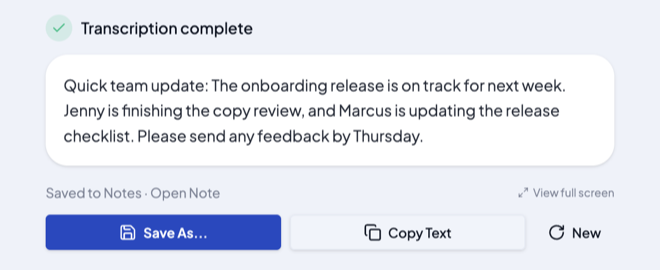
Get the result your way. The transcript is saved to Notes, with an Open Note link. Save the text with Save As, copy it, or click New to start another file. If AI cleanup is on, the note gets an AI-generated title.
Pick the language. Choose your spoken language in Settings > Preferences > Transcription language to tell the model what to expect. It can help a lot, though results depend on the model.
A transcript of a file is one block of text, with no speaker labels or timestamps.
How to transcribe audio on a Mac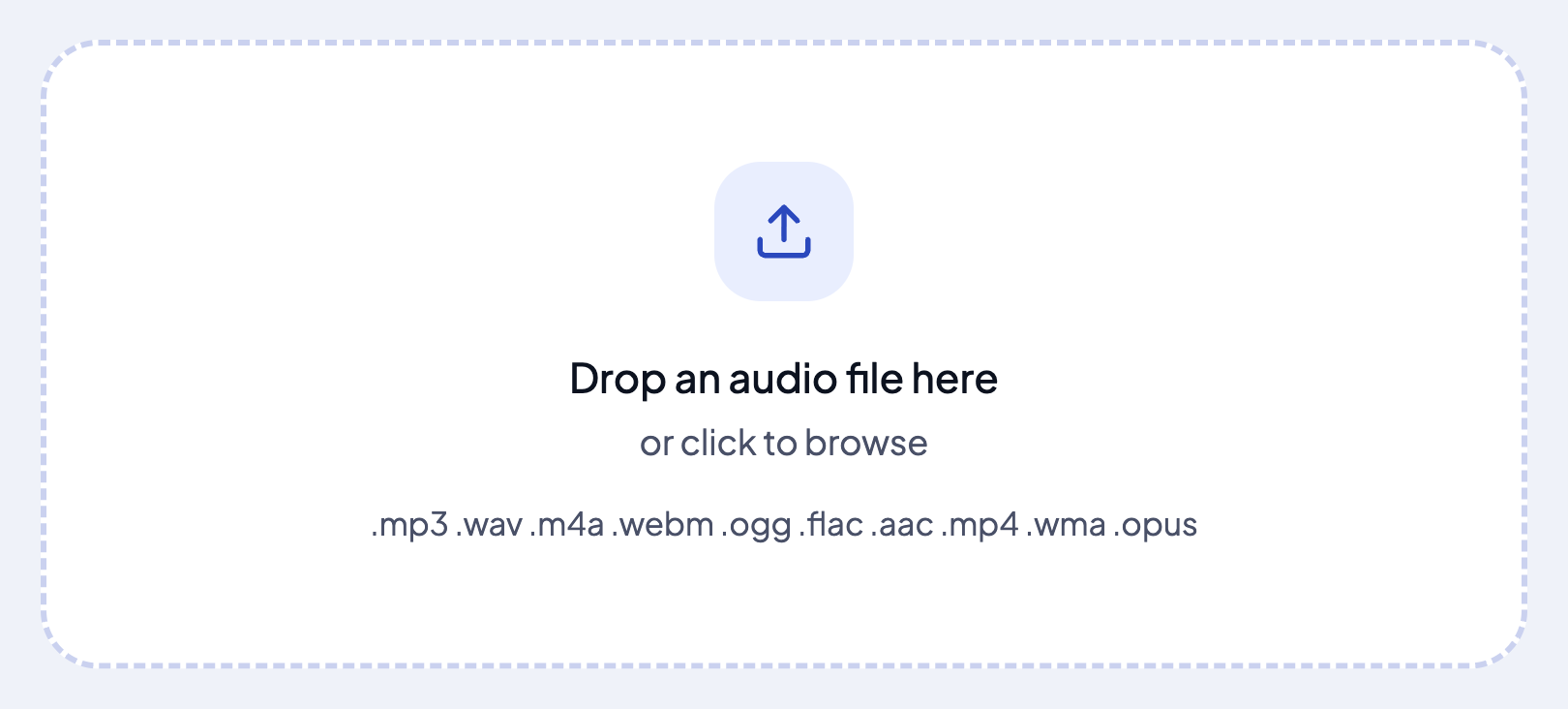
Agent Mode
Ask your AI agent, by voice or text.
Ask about WhisprDesk or anything else. Agent Mode is a voice and text assistant in its own window, and it stays off until you turn it on.
Type or speak. Turn it on under Models > Agent, then open the chat with the agent hotkey or the Ask the agent button. Type your question, or click the wave button and speak; your words appear in the box and you press Send.
Ask about the app. Where do I add names so they are spelled right? How do I turn on AI cleanup? The agent answers questions about WhisprDesk, with steps you can follow.
Ask anything else. Ask it to help word a reply, for example. It takes general questions too, and larger models answer them better.
Your model, your key. Choose a cloud model with your own key, or a local model on your Mac. You can add your own instructions for the agent too.
Copy and start fresh. Copy any answer with the Copy button that appears when you point at it, and click + to start a new chat. Each time you open the window, a new chat starts.
Answers, not actions. The agent is a chat assistant. It answers and drafts in its own window; it does not open apps, paste, browse or send anything for you.
With a cloud model, what you say to the agent goes to the provider you pick. With a local model, it stays on your Mac.
Read about AI cleanup and Agent Mode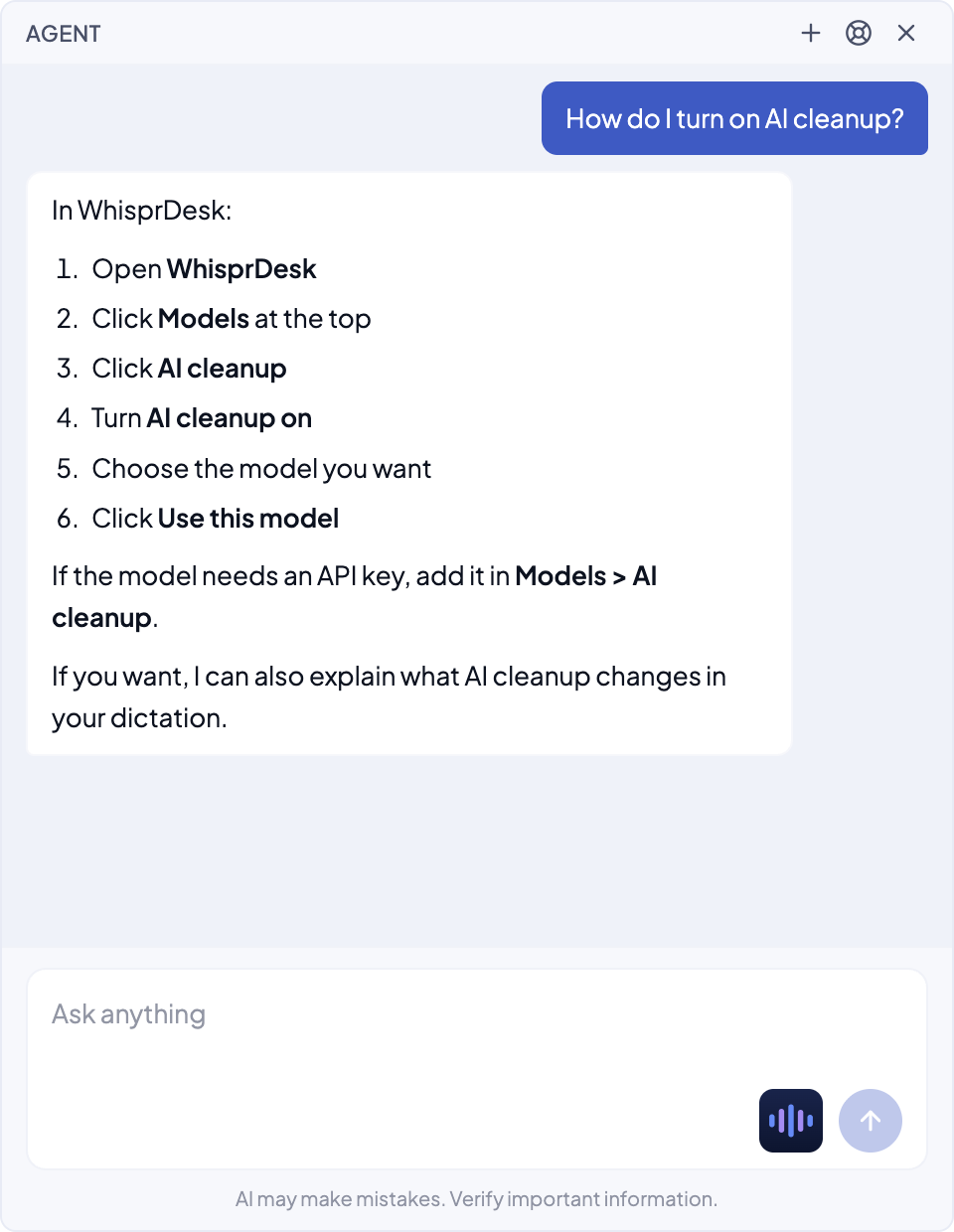
Notes
Write, dictate and organize notes.
Notes is a notes app inside WhisprDesk. Capture an idea by typing or by speaking, keep it in a folder, and find it again later.
Write or dictate. Type a note, or click into it and use your dictation hotkey. Notes save as you type and show a word count.
Organize with folders. Notes start with Personal and Meetings folders, and you can add more, rename or delete them, and move a note with Move to folder. Transcripts of audio files land in the Personal folder.
One click from speech to what you need. Speak into a note, then pick an action. Generate Notes, built in, cleans up and structures the note and turns spoken steps into lists and checkboxes. A note can show its Raw and Enhanced versions.
Create your own actions. Under Manage Actions, give an action a name, a short description and your own instructions to the AI. It appears in the same menu, and the button remembers it for one-click reruns.
You choose when the AI runs. Recording and actions are separate steps. Nothing goes to the AI until you pick an action, and the AI's output is a draft to check before you rely on it.
Record inside a note. The recording is saved with the note as its transcript, shown alongside the note. This always uses OpenAI with your own key, even when dictation is set to a local model, and it sends your microphone and, if you allow System Audio, other audio playing on your Mac to OpenAI.
Find and export. Press Cmd+K to search note titles and contents, and export any note as Markdown or plain text.
Notes are stored on your Mac, with no sync between devices. AI actions need text cleanup on and a model you choose: a cloud model receives the note text, and a local model runs on your Mac. AI cleanup works best in English.
Read the Notes guide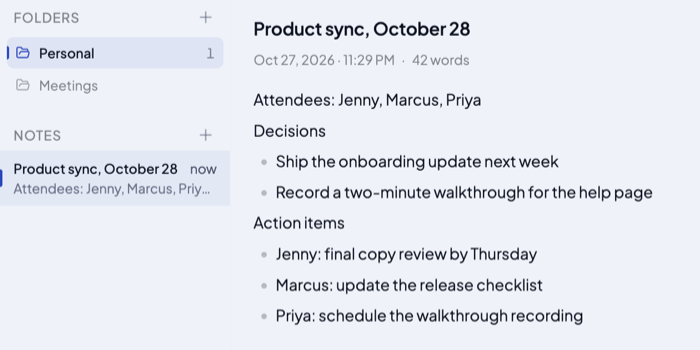
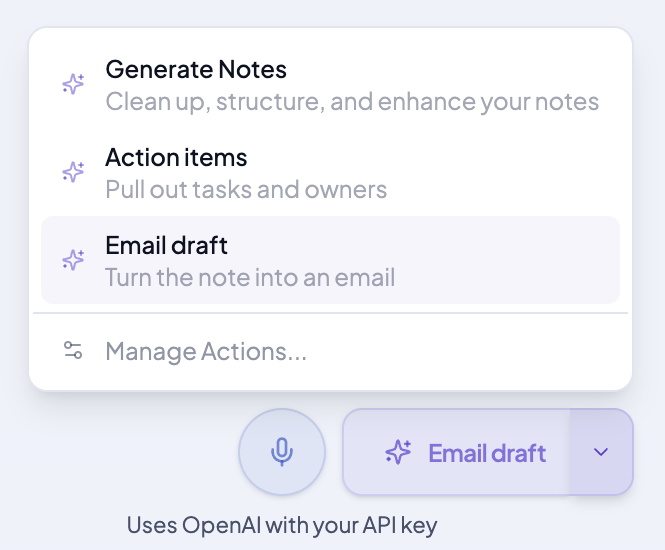
Two actions to start with
Copy these into the New Action form as they are, or change them to suit you. Both ran on this note, and the AI's output is a draft to check.

From the note, list every task or follow-up as a checkbox item. Start each with the person responsible if one is mentioned (write "Me" when the speaker means themselves), and add any due date mentioned. Do not add tasks that are not in the note. If there are none, reply "No action items found."
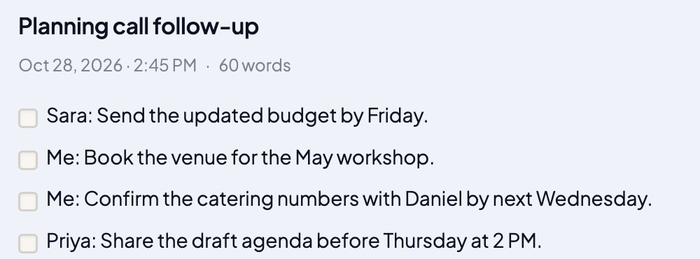
The result. Your original text is kept, and the Notes and Enhanced switch moves between the two.
Rewrite the note as a short, polite email. Add a subject line first, then a greeting, the key points in plain sentences, and a closing. Keep all facts, names and numbers exactly as in the note. Do not invent details.
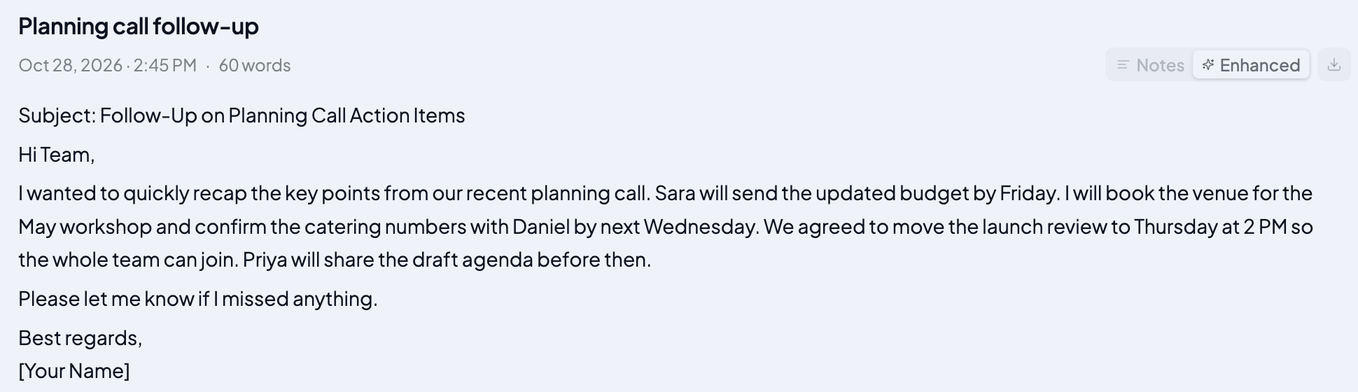
The result. Your original text is kept, and the Notes and Enhanced switch moves between the two.
One app. Every way you use voice.
Dictation, audio-file transcription, and optional AI cleanup, with local models on your Mac or your own key for the cloud. You choose.
Local transcription, your choice
Choose Whisper or NVIDIA Parakeet and transcription runs on your Mac, with no audio uploaded. No telemetry in the app. No training on your data.
Dictate into any text field
Press the hotkey, speak, press it again, and the text is pasted where your cursor is. It works in any text field where you can paste: email, documents, code, chat.
Transcribe any audio file
Drop in an MP3, WAV, M4A or MP4 file and get the text back, saved as a note. Useful for lectures, podcasts, interviews, and voice memos.
Ask the assistant while you dictate
With AI cleanup on, start with “Hey WhisprDesk” and say what you want, for example “make this sound more formal”. It uses your own key or a local model, and cleanup is off until you turn it on.
Built-in API for other apps
A local API ships in the box. Other apps and scripts on your Mac can request transcriptions and follow new dictations. It only accepts connections from your own Mac and is protected by a token.
Made for the way you work.
Developers, writers, students, journalists and more use WhisprDesk to speak into any text field and to turn audio files into text.
- Developers
Dictate prompts, commit messages, comments and documentation.
- Writers
Speak first drafts, then edit them like any other text.
- Students
Turn lecture recordings and spoken thoughts into text.
- Journalists
Transcribe interview recordings on your own Mac.
- Podcasters and creators
Get a text version of recorded audio files.
- Email
Speak replies and messages into any email window.
- Everyday productivity
Capture tasks, notes and replies without switching apps.
- MacBook users
Dictate on a laptop, with a local model for offline use.
- Offline use
Transcribe without an internet connection using a local model.
Common questions
Does my voice ever leave my Mac?
Not if you choose local transcription. Dictation and audio-file transcription then run entirely on your device, using Whisper or NVIDIA Parakeet. If you choose cloud transcription, your audio goes directly to the provider whose key you entered, and optional AI cleanup sends transcript text to the provider you configured. We never receive your audio or text.
How on-device dictation works →Does WhisprDesk work offline?
Yes. Dictation and transcription are fully offline once the app and its models are installed. Only the optional bring-your-own-key AI cleanup needs a connection, because it talks to your own provider. WhisprDesk checks your license online from time to time.
Local vs cloud dictation →Which apps does it work in?
Any text field where you can paste. WhisprDesk pastes the text where your cursor is, so it works system-wide: email, documents, chat, code editors, browsers. We do not test or promise every app, and a few secure fields block automatic pasting.
System-wide dictation on Mac →What does it need to run?
A Mac with Apple Silicon (M1 or later) running macOS 14 Sonoma or later.
Is it a subscription?
No. WhisprDesk is a one-time purchase, and your license covers up to two Macs.
Pricing →Is it WhisprDesk or WhisperDesk?
It is spelled WhisprDesk, without the second “e”. The app runs the Whisper speech model on your Mac, so WhisperDesk and whisper desk are common ways people write it. If that is how you found us, you are in the right place.
How do I get my license key?
It arrives by email at the address you use at checkout, with a license file attached that you can import straight into the app, plus the key itself as a paste fallback.
How activation works →Your voice. Your Mac. Free for 7 days.
Dictate into any text field on your Mac, with optional AI cleanup on your terms.
Free for 7 days. No credit card. No account. Nothing to cancel.