AI cleanup
Applies to WhisprDesk 1.9.0 · Updated 2026-11-16
AI cleanup is an optional step that tidies your transcribed text, fixing punctuation and small errors while keeping your tone, before it is pasted. It is off by default. When it is on, your transcribed text goes to the AI model you choose: a cloud provider using your key, or a local model on your Mac.
Before you start
Open the WhisprDesk app: click its icon in the Dock, or open it from your Applications folder. The WhisprDesk window opens on the Transcripts tab. If WhisprDesk is running but you don't see its window, click the WhisprDesk icon in the menu bar at the top right of your screen and choose Open WhisprDesk.
AI text cleanup models are set up in Models > AI cleanup. Transcription models (Whisper, NVIDIA Parakeet, and cloud providers) are chosen separately in Models > Speech to text. The two are independent: you can transcribe locally and clean up with a cloud model, or the other way around.
Turn it on
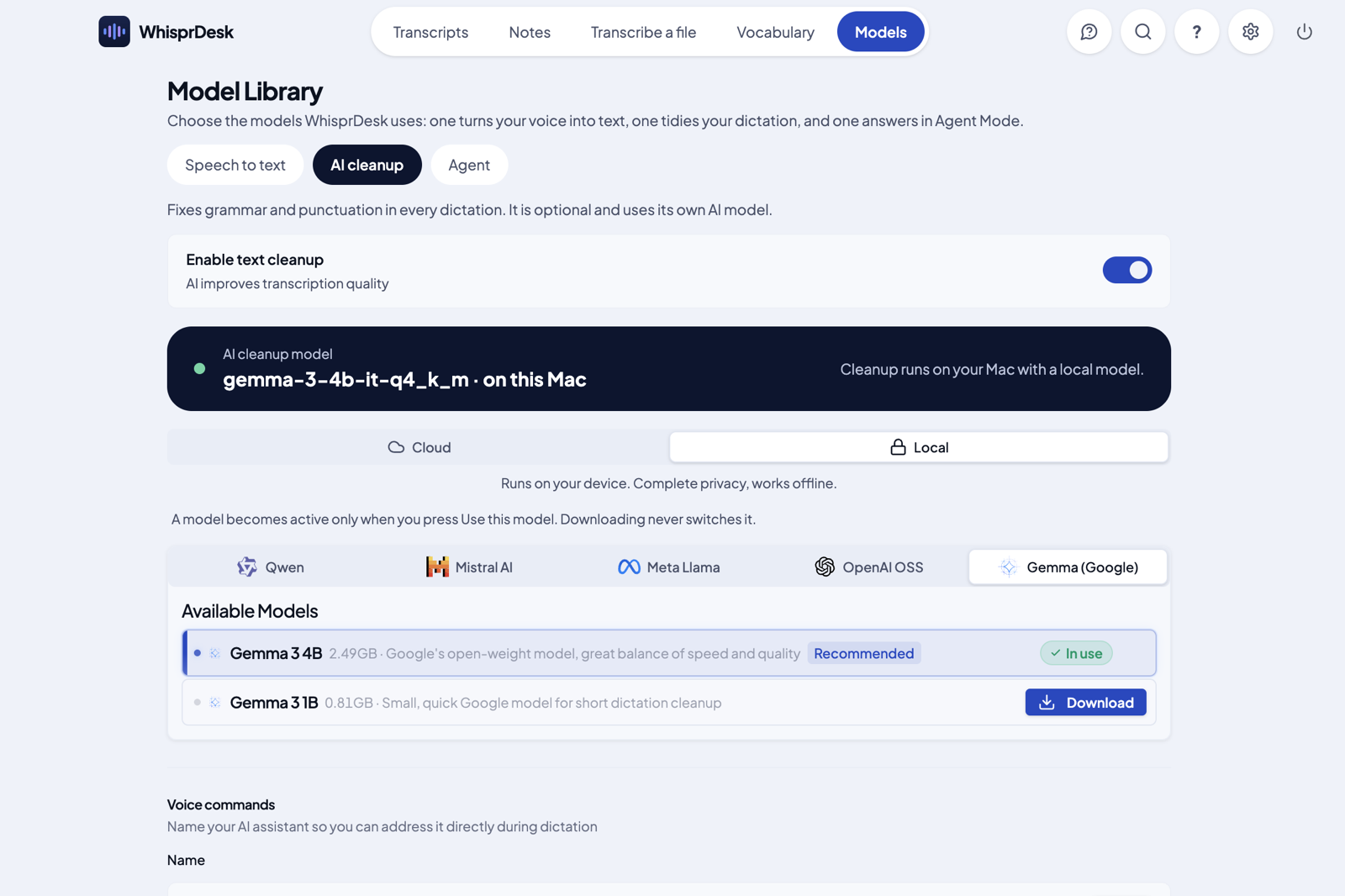
Where: WhisprDesk > Models > AI cleanup
- Open the WhisprDesk app: click its icon in the Dock (or open it from your Applications folder).
- Click the Models tab at the top of the window, then click AI cleanup.
- Turn on Enable text cleanup.
- A model picker appears below it. Choose Cloud or Local.
- For cloud: pick a provider and paste your API key for it. Until a key is saved, the list says "Enter your API key above to choose a model." Then click a model. It shows Selected.
- For local: pick a model and click Download. When the download finishes, click the model. It shows Selected.
- Click Use this model. The model now shows In use, and the banner at the top of the picker shows it.
A cleanup model becomes active only when you click Use this model, the same rule as for transcription models. Browsing providers or downloading a model does not switch it. The model picker only appears while text cleanup is on. To turn cleanup off again, go back to Models > AI cleanup and switch Enable text cleanup off.
When to use it
AI cleanup works best when you dictate in English. In other languages it can change your wording more than you want, so if you mostly dictate in another language, try it on a few dictations first and switch it off if you prefer your own words. Cleanup also adds a short wait before your text is pasted, because your words go through a second model after transcription.
Cloud providers
| Provider | Examples of models offered |
|---|---|
| OpenAI | GPT-6 Luna, GPT-6.1 Terra, GPT-6 Sol, GPT-5.4, and GPT-5.2 |
| Anthropic | Claude Sonnet 5.5, Claude Haiku 5.5, and Claude Opus 5.5 |
| Gemini models | |
| Groq | GPT-OSS 120B and GPT-OSS 20B |
| Custom | Your own endpoint. The model list is loaded from it. It uses only the API key you enter for it (your OpenAI key is never sent to a custom endpoint). |
The exact model list is shown in the app. If you had chosen a model that its provider has since retired, WhisprDesk moves your choice to its replacement automatically.
Local models
Local cleanup models run on your Mac with no internet needed after download. They come from the Qwen, Mistral, Llama, GPT-OSS, and Gemma families and are downloaded when you choose them in Models > AI cleanup. They are stored on your Mac.
What is sent
- Cloud model: your transcribed text is sent to that provider. Your audio is not sent for cleanup.
- Local model: nothing leaves your Mac for cleanup.
Cleanup is separate from transcription. For example, local transcription with cloud cleanup keeps your audio on your Mac but sends the text to your cleanup provider.
Talking to the assistant during dictation
Where: any app, while dictating (needs text cleanup on in WhisprDesk > Models > AI cleanup)
While cleanup is on, you can give an instruction instead of dictating. Start with Hey followed by your name for it, then say what you want, for example "Hey WhisprDesk, make this sound more formal." The AI follows the instruction and pastes the result. You can also start with the name and a comma ("WhisprDesk, make this sound more formal."). Otherwise (without Hey, "Hi", "OK" or "Okay" before the name) it only cleans up your words, even if you mention the name or ask a question. If a cleanup ever comes back much longer than what you said, WhisprDesk pastes your own words instead.
The default name is WhisprDesk.
Where: WhisprDesk > Models > AI cleanup > Voice commands
- Open the WhisprDesk app: click its icon in the Dock (or open it from your Applications folder).
- Click the Models tab at the top of the window, then click AI cleanup.
- Find Voice commands, type a new name under Name, and click Save. Saving a name also adds it to your Vocabulary.
Prompt Studio
Where: WhisprDesk > Models > AI cleanup > Prompt Studio
- Open the WhisprDesk app: click its icon in the Dock (or open it from your Applications folder).
- Click the Models tab at the top of the window, then click AI cleanup.
- Scroll to Prompt Studio. It lets you view, customize, and test the instructions used for cleanup. Testing a prompt uses your cleanup model in the same way as a dictation.
Where else this model is used
The cleanup model is also used for:
- AI Actions on the Notes tab, such as Generate Notes.
- Note titles created after a file is transcribed on the Transcribe a file tab.
- Re-transcribe on the Transcripts tab, if cleanup is on.
To use AI Actions you need a cleanup model selected, which means turning on text cleanup. Note that this also applies cleanup to your regular dictation.
Agent Mode is separate
Agent Mode is a voice chat window with its own model and hotkey, set up in Models > Agent: click the Models tab at the top of the window, then click Agent. It answers you in a chat window instead of typing into your app. It is off by default. See Settings reference.