Settings reference
Applies to WhisprDesk 1.9.0 · Updated 2026-11-16
This page lists every setting in WhisprDesk 1.9.0, what it does, and its default. Settings are stored on your Mac, and API keys are encrypted with macOS secure storage. Settings has five sections: Preferences, Integrations, System, Privacy & Data, and License & Legal. Transcription models, AI cleanup, and Agent Mode are set up on the Models tab, which has three parts: Speech to text, AI cleanup, and Agent. All of these are covered below.
Open Settings
Where: WhisprDesk > Settings
- Open the WhisprDesk app: click its icon in the Dock (or open it from your Applications folder).
- Click the gear button at the top right of the window. The Settings page opens.
- Click a section button across the top, such as Preferences or Privacy & Data, to open it.
- To leave Settings, click Back to Transcripts.
If WhisprDesk is running but you don't see its window, click the WhisprDesk icon in the menu bar at the top right of your screen and choose Open WhisprDesk.
Transcription models (Whisper, NVIDIA Parakeet, and cloud providers) are chosen in Models > Speech to text. AI text cleanup models are set up in Models > AI cleanup.
Preferences
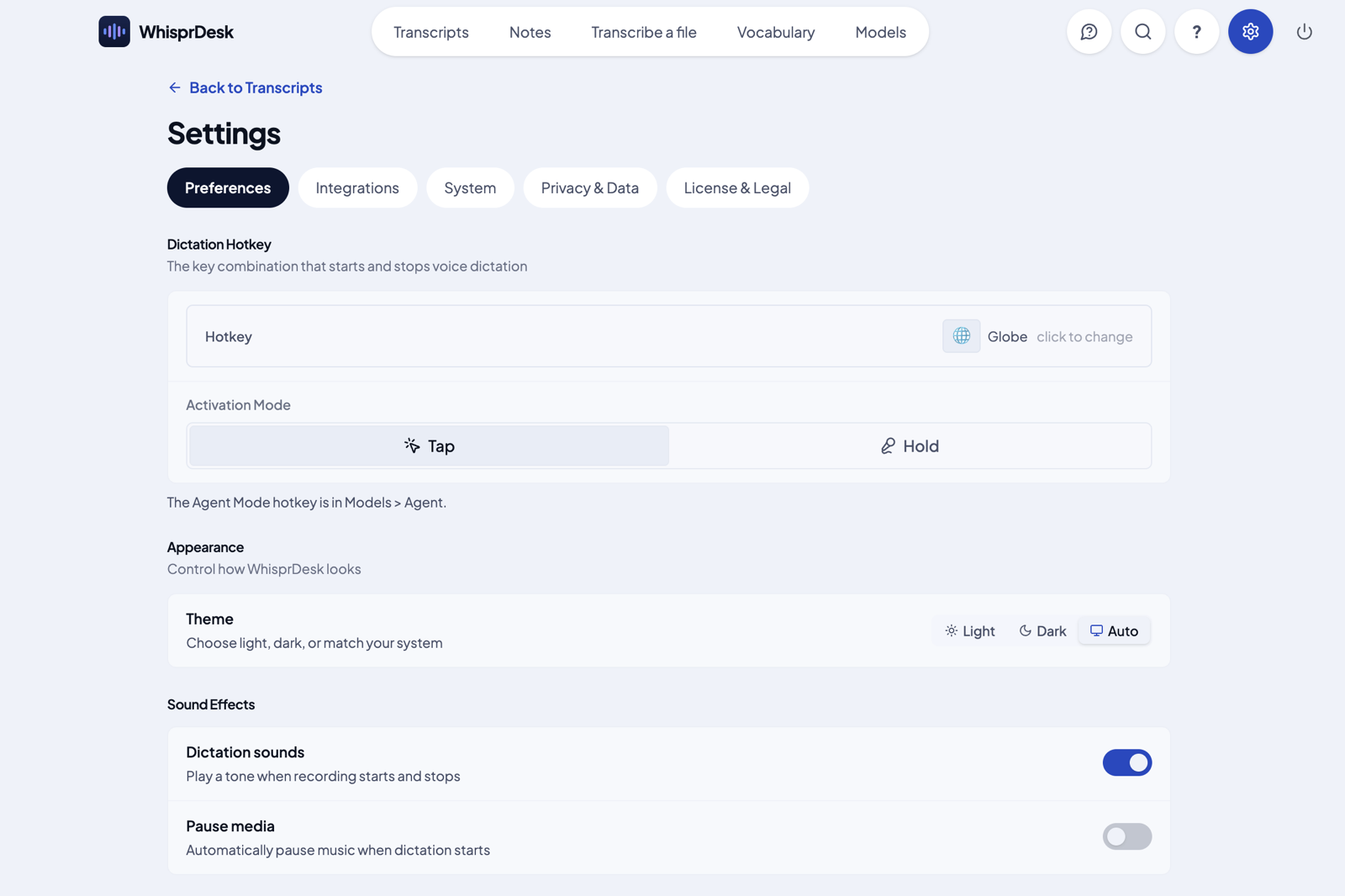
Where: WhisprDesk > Settings > Preferences
Dictation Hotkey
The dictation hotkey and Activation Mode are at the top of Preferences, under the heading Dictation Hotkey. A line under it says "The Agent Mode hotkey is in Models > Agent."
| Setting | What it does | Default |
|---|---|---|
| Dictation Hotkey | The key that starts and stops dictation. Click the field and press a new key. Reset to Globe/Fn restores the default. If your Mac opens the emoji picker with the Globe / fn key, a note under the field explains how to change that in System Settings. | Globe (fn) |
| Activation Mode | Tap: press once to start, again to stop. Hold: hold while speaking, release to stop. | Tap |
Other preferences
| Setting | What it does | Default |
|---|---|---|
| Theme | Light, Dark, or Auto (match your Mac) | Auto |
| Dictation sounds | Plays a tone when recording starts and stops | On |
| Pause media | Pauses music when you start dictating and resumes it after | Off |
| Keep transcription in clipboard | Leaves the dictated text on the clipboard after pasting. When off, your previous clipboard contents are restored. | Off |
| Auto-hide when idle | Hides the floating dictation icon (the WhisprDesk icon near a bottom corner of your screen) until you start dictating | Off |
| Start position | Where the recording panel appears: Bottom Right, Bottom Center, or Bottom Left | Bottom Right |
| Interface language | Language of the app: English, Español, Français, Deutsch, Português, Italiano, Русский, 日本語, 简体中文, 繁體中文 | Your Mac's language if listed, otherwise English |
| Transcription language | The language you speak. Auto-detect lets the engine decide. | Auto-detect |
| Launch at login | Starts WhisprDesk when you log in | Off |
| Start minimized | Starts without opening the main window | Off |
| Prefer Built-in Microphone | Uses your Mac's built-in mic. Turn off to pick a specific input device. | On |
Auto-learn from corrections is in the Vocabulary tab, described below.
Privacy & Data
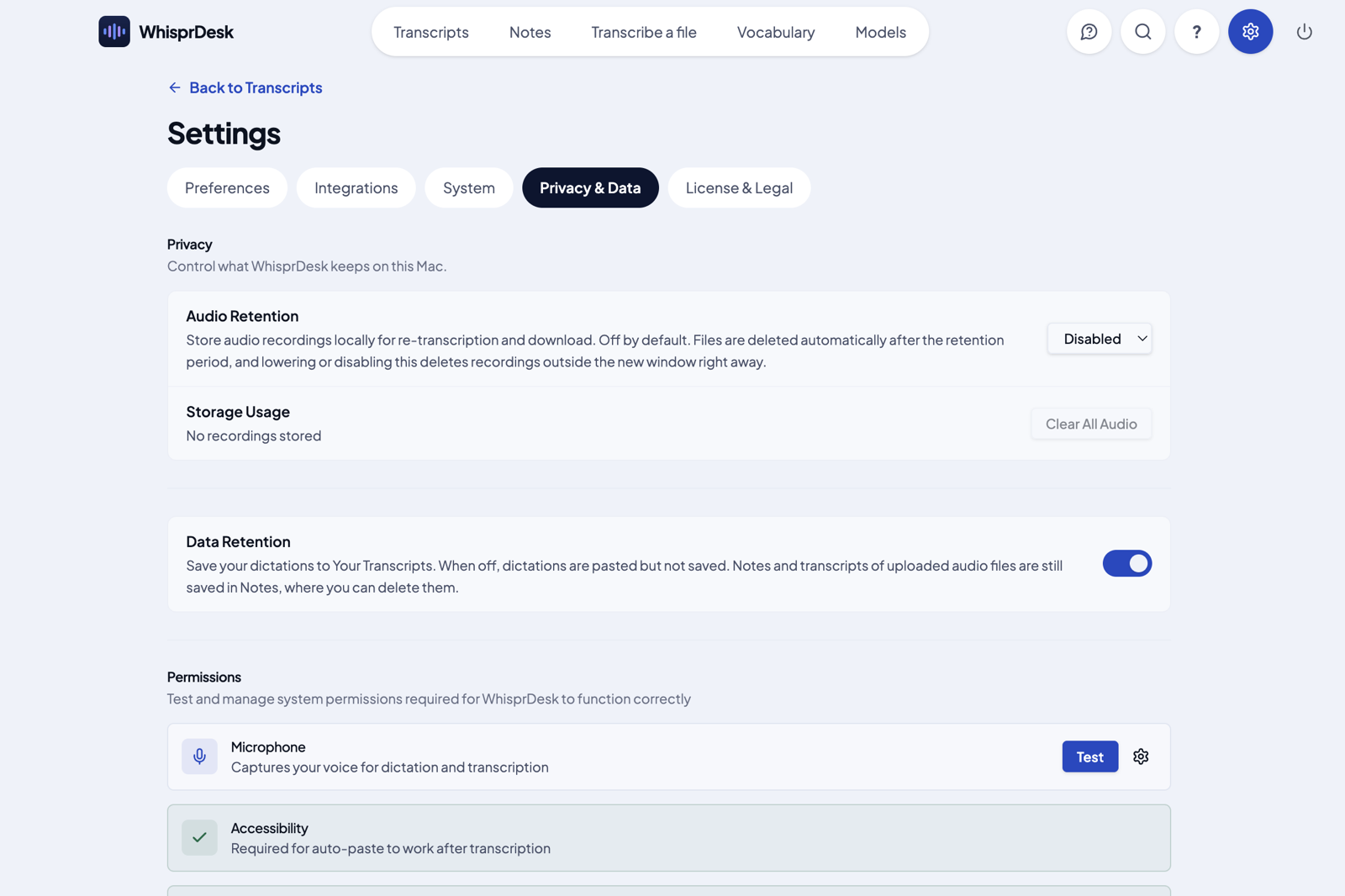
Where: WhisprDesk > Settings > Privacy & Data
| Setting | What it does | Default |
|---|---|---|
| Audio Retention | Keeps recordings on your Mac for 7, 14, 30, 60, or 90 days so they can be re-transcribed | Disabled |
| Storage Usage | Shows how many recordings are stored and their size, with Show in Finder (when retention is on) and Clear All Audio | |
| Data Retention | Saves your dictations to Your Transcripts on the Transcripts tab. When off, dictations are pasted but not saved. Notes and transcripts of audio files are still saved in Notes. | On |
Details: Audio and transcripts.
Permissions lets you test Microphone, Accessibility, and System Audio (optional; this is the macOS Screen Recording permission, needed only for recording inside a note).
Reset accessibility permissions opens System Settings > Privacy & Security > Accessibility. It does not remove anything by itself: remove WhisprDesk from the list there, then add it again.
Integrations
Where: WhisprDesk > Settings > Integrations
The page opens with "Let other apps on this Mac use WhisprDesk to turn speech into text." and a What is this for? box with examples and the steps to connect an app. Most people don't need it, because the dictation hotkey already types into any app. External App Gateway is the local API for other apps on your Mac. It shows Running while WhisprDesk is open, with Copy URL, Show token, Copy token, and Rotate token. See Local API.
System
Where: WhisprDesk > Settings > System
| Setting | What it does |
|---|---|
| Check for Updates | Checks GitHub for a new version. The app also checks automatically shortly after launch and every 4 hours. Downloading and installing only happen when you click. |
| Debug Logging | Writes detailed logs to your Mac for troubleshooting. Off by default. See Troubleshooting. |
| Model cache: Open | Opens the models folder in Finder |
| Model cache: Clear Cache | Deletes all downloaded models: Whisper, Parakeet, and local AI cleanup models |
| Reset app data | Permanently deletes everything WhisprDesk stores on this Mac: settings, saved API keys, transcripts, notes, recordings, models, and cached data. Your license stays activated. The app reloads afterwards. |
License & Legal
Where: WhisprDesk > Settings > License & Legal
The top of the page shows your license status, customer email, masked license key, the time of the last verified check, and the days left in a trial. Your devices lists the Macs using your license (up to 2), each with Deactivate. When no license is active, you can enter a key or import a license file. License checks contact our licensing service, Keygen. See Activate your license and License file.
Below that, Legal documents lists the documents you accepted at first launch, each with its effective date. View opens it in the app; Open in browser opens the live page on whisprdesk.com. When one of these documents changes, WhisprDesk shows a short notice once, which you close with OK.
Models tab
Where: WhisprDesk > Models
The Models tab has a row of three buttons at the top: Speech to text, AI cleanup, and Agent. WhisprDesk remembers which of the three you opened last. To open one:
- Open the WhisprDesk app: click its icon in the Dock (or open it from your Applications folder).
- Click the Models tab at the top of the window.
- Click Speech to text, AI cleanup, or Agent.
Speech to text
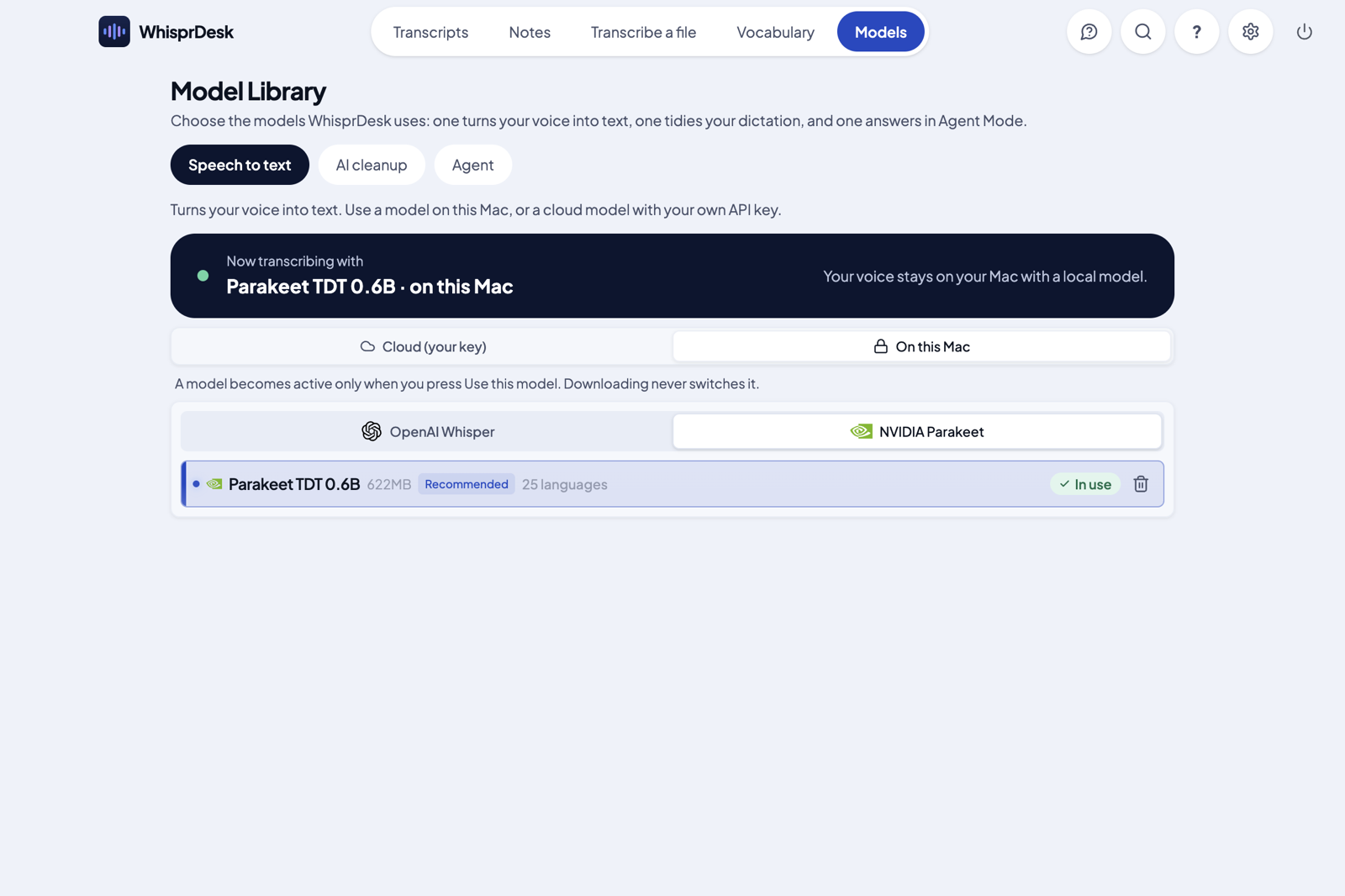
Where: WhisprDesk > Models > Speech to text
Chooses how your voice becomes text. The banner at the top shows Now transcribing with and the active model. A model becomes active only when you click Use this model. Details: Choosing a transcription engine.
| Setting | Default |
|---|---|
| Cloud (your key) or On this Mac | Cloud |
| Cloud provider and model | OpenAI, with its smaller, lower-cost speech-to-text model selected |
| Local engine | OpenAI Whisper (Base). Must be downloaded first. |
AI cleanup
Where: WhisprDesk > Models > AI cleanup
| Setting | What it does | Default |
|---|---|---|
| Enable text cleanup | Sends the transcribed text to an AI model to tidy it before pasting. The model picker appears when on. Pick a model, then click Use this model. | Off |
| Voice commands: Name | Say "Hey" plus this name during dictation to give the AI an instruction. Only works with text cleanup on. | WhisprDesk |
| Prompt Studio | View, customize, and test the cleanup instructions | Built-in prompt |
Details: AI cleanup.
Agent
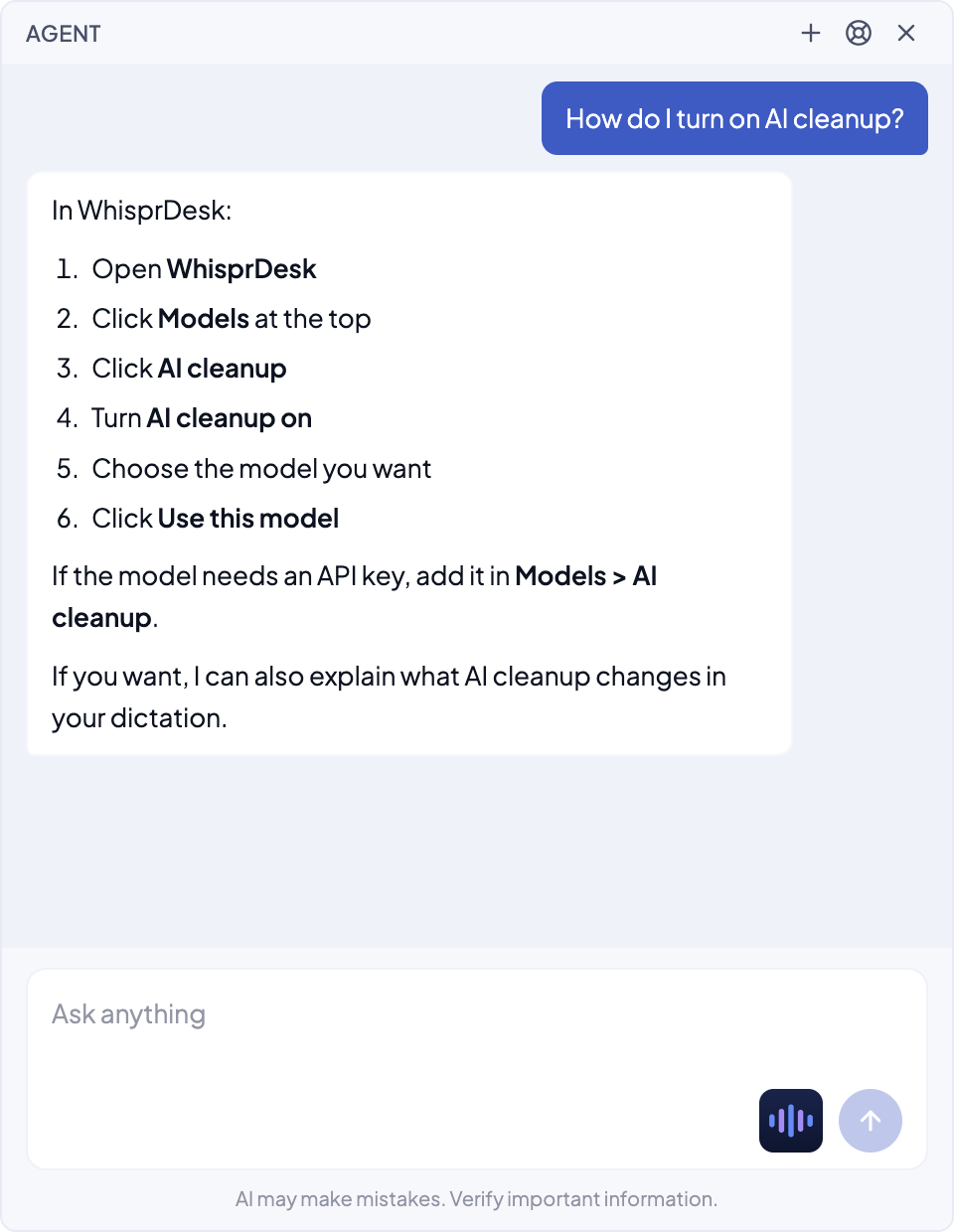
Where: WhisprDesk > Models > Agent
Agent Mode is a separate voice chat window that answers your questions about WhisprDesk, or general questions on any topic. It is not dictation. Larger AI models give better answers to general questions. The page starts with a Set it up checklist; each step shows a check mark when it's done.
- Open the WhisprDesk app: click its icon in the Dock (or open it from your Applications folder).
- Click the Models tab at the top of the window, then click Agent.
- Turn on Enable Agent Mode.
- Under Agent Model, choose Cloud or Local, pick a model (it shows Selected), and click Use this model. If you already use AI cleanup, you can instead click Use my AI cleanup model in the checklist.
- Set an Agent Hotkey.
- Click Try the agent, type or speak your question, and read the answer in the chat window.
After that, open the agent from any app with your agent hotkey, or click the agent button (a speech bubble with a question mark) at the top right of the main window. If Agent Mode isn't set up yet, that button opens this page instead.
In the agent window you can type or speak:
- Type: type your question in the Ask anything box and press Enter (or click the send arrow). Shift+Enter starts a new line.
- Voice button: click the WhisprDesk wave button next to the box, speak, then click the red stop button. Your words appear in the box so you can check or edit them; press Enter to send.
- Agent hotkey: press it once to start listening and again to stop. Your question is sent straight away, without touching the keyboard. If you had already typed something, the spoken words are added to the box instead, so nothing you typed is lost.
The agent button opens the window with the cursor in the text box; the agent hotkey opens it and starts listening. Press Esc to close the window. Each time you open it, it starts a new chat (anything you typed but didn't send stays in the box). To start over without closing, click the + button at the top right. The lifebuoy button next to it opens these docs. The line under the box reminds you that AI may make mistakes, so check important answers.
| Setting | What it does | Default |
|---|---|---|
| Enable Agent Mode | Turns on the agent chat window and its hotkey | Off |
| Agent Hotkey | Opens the agent window. Cannot be the same as the dictation hotkey. | None set |
| Agent Model | AI model for conversations. A model becomes active only when you click Use this model. A cloud model receives the conversation. | Groq, GPT-OSS 120B |
| System Prompt | Extra instructions. They are added to WhisprDesk's built-in instructions, which already explain the app. | Empty |
The agent knows WhisprDesk: you can ask it how to do things in the app, such as changing your hotkey or adding a Vocabulary word. When it isn't sure, it points you to ? > Read the docs. Your spoken question is turned into text with the model you use in Models > Speech to text.
Outside Settings
Vocabulary tab
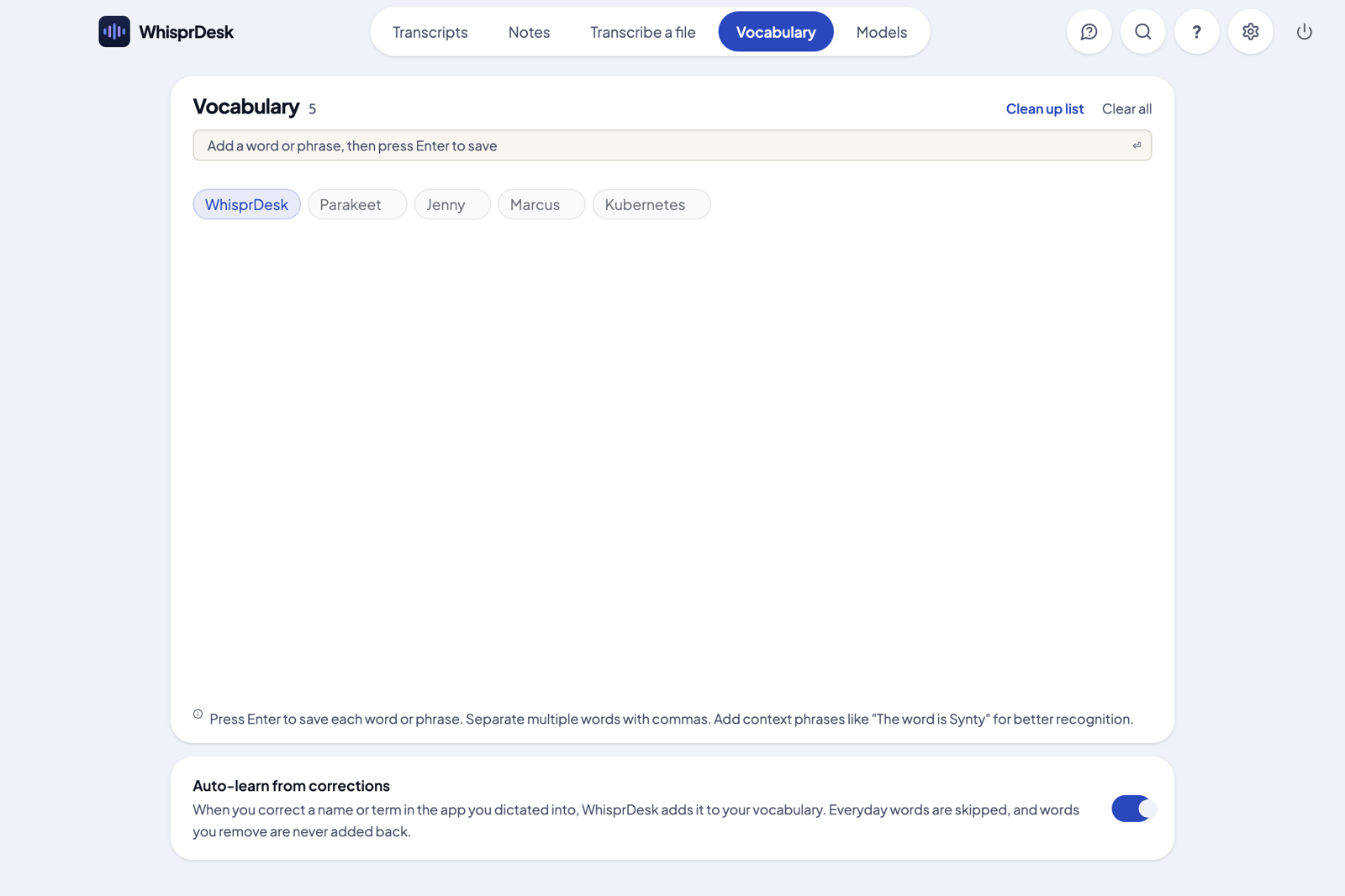
Where: WhisprDesk > Vocabulary tab
Words and names you add to improve recognition. To add one:
- Open the WhisprDesk app: click its icon in the Dock (or open it from your Applications folder).
- Click the Vocabulary tab at the top of the window.
- Type a word or phrase in the box, then press Enter to save it. (You can also click the small return-arrow button at the right end of the box.) You can separate several words with commas.
- To remove a word, click the remove button next to it. Clear all removes every word.
New installs start with WhisprDesk in the list, so the app's name is spelled correctly when you say it.
In cloud mode, your Vocabulary words are sent to your provider along with your audio. Vocabulary helps Whisper (local) and cloud models. NVIDIA Parakeet does not use it.
Keep the list to real names and terms. Speech models already know everyday words, and a long list of them weakens the words that matter. Clean up list at the top of the tab suggests words to remove: everyday words and plain lowercase words. Everyday words start ticked. Plain lowercase words start unticked, because some may be real terms (like a command name); tick any you don't need, or click Select all. Then click Remove selected. Words you remove, whether one at a time, with Clean up list, or with Clear all, are never added back by auto-learn.
At the bottom of the Vocabulary tab is a card with a switch for Auto-learn from corrections. When you fix a name or term in the app you pasted into, the corrected word is added to your Vocabulary. Everyday words are skipped, and a word you remove from the list is never added back automatically (you can still add it yourself). A notice shows each learned word with Undo. It runs on your Mac using the Accessibility permission. Default: On. To change it, open the WhisprDesk app, click the Vocabulary tab at the top of the window, scroll to the bottom, and use the switch.
Help and support menu
Where: WhisprDesk > ? button at the top right
Read the docs, Contact support, Report a problem, and What's new, plus your WhisprDesk version and Check for updates.
Which settings use the internet
Only these ever contact a server:
- Cloud transcription, cloud AI cleanup, and cloud Agent Mode: your chosen provider, using your key.
- Model downloads: Hugging Face or GitHub, only when you download.
- Update checks: GitHub.
- License activation and validation: Keygen.
Everything else works entirely on your Mac.